How to use the Canva editor: A beginner's guide to the basics
Posted: Tue 14th Apr 2026
Last updated: Tue 14th Apr 2026
19 min read
Canva is simple enough to get started with, but the editor can still feel crowded when you first open it.
There are panels, tabs, floating controls, menus that change depending on what you click, and a lot of ways to end up adjusting the wrong thing.
Once you know what each area is for, the editor starts to make sense quite quickly.
Rather than memorising every tool, you can get by simply understanding where your design sits, where content comes from, how to adjust what's on the page and how to save or export your work.
This guide covers the parts of the Canva editor most people use first – the homepage, the side panel, the canvas, the toolbar, pages, layers, and the basic sharing and download options.
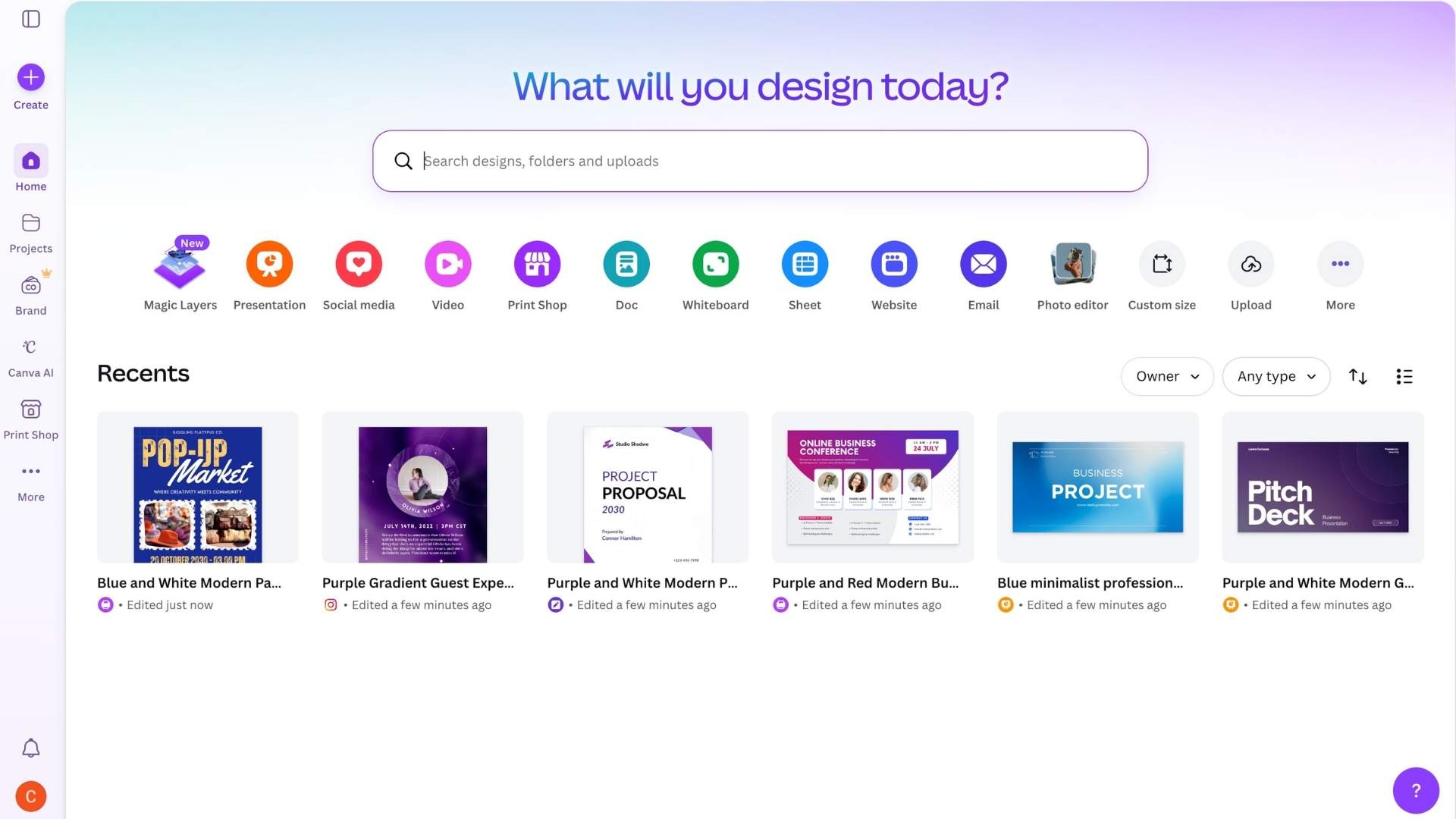
Before you get into the editor itself, it helps to know what the homepage is doing.
This is where you:
start a new design
browse templates
find recent files
open older projects
If you use Canva often, the homepage becomes a kind of front desk. It's less about editing and more about finding the thing you want to work on.
If you already know what you need to make, the fastest route is usually to search for the format or template type directly.
If you're still deciding, you can browse by content type and open a few options before choosing one.
Your recent designs should be easy to find from the homepage. So should folders and saved projects, depending on how you organise things.
If you use Canva for regular business content, this part matters more than people expect.
Once you have a dozen social posts, event graphics, presentation drafts and half-finished PDFs sitting around, finding the right file quickly matters almost as much as editing it.
For everyday use, think of the homepage as the place where you start, reopen and organise work. The editor is where the actual design happens.
Pictured: The Canva homepage
2. How the Canva editor is laid out
Once you open a design, the editor is built around a few main areas.
The canvas
Sitting in the middle, the canvas is the live working area where your design appears.
If you're making a single social post, you'll usually see one page. If you're making a presentation, carousel or multi-page document, you'll see more than one page and be able to move between them.
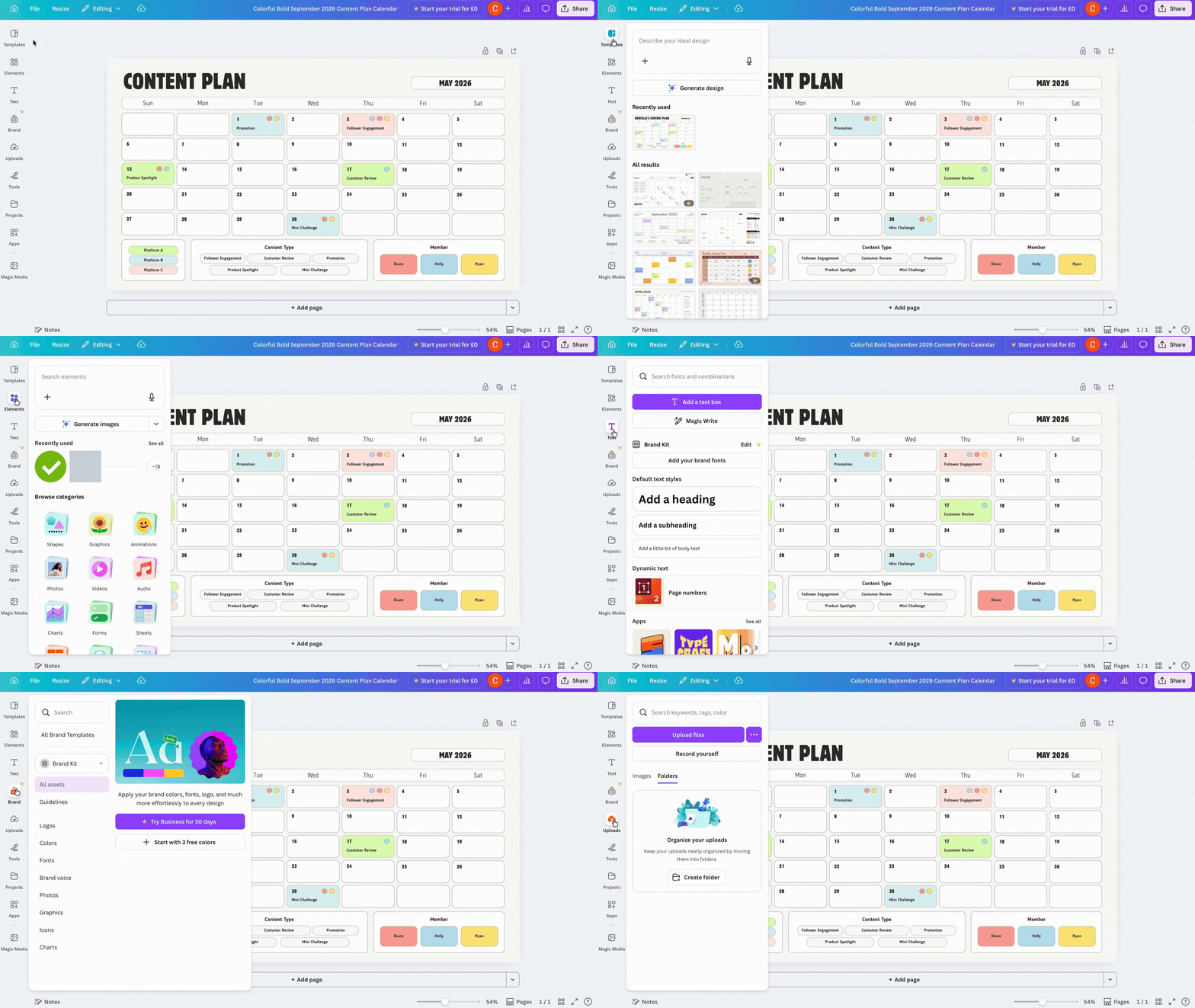
On the left, you have the side panel. This is where most of the "raw material" comes from.
Templates, text, uploads, design elements, projects and apps usually live here. This is the area you open when you want to add something new to the design.
At the top, you have the toolbar. This changes depending on what you click.
Select a text box and you'll see text settings. Select an image and you'll get image-related options. Click the page background and the controls shift again.
That moving target might catch you out at first, but once you realise the toolbar is context-based, it becomes easier to work with.
You'll also see controls for sharing, downloading and sometimes resizing near the top area, depending on your set-up and plan.
The side panel is where most people spend their time when they're building a design.
Templates
Templates are usually the first stop.
If you've opened a blank file but decide you want a quicker route, you can search for a layout and apply it.
If you started with a template, you may come back here to try alternatives or borrow ideas from other designs.
Templates are useful, but if you keep swapping them midway through a project you can end up making a mess.
It's usually better to choose one direction and then edit it properly.
Text tab
The text tab is self-explanatory once you open it. You can add headings, subheadings, body copy or decorative text styles.
Most business users don't need the decorative options very often. Plain text boxes tend to be more useful because they're easier to format cleanly.
Uploads
Uploads matter if you want your work to look like it belongs to your business rather than the template library.
Product photography, venue images, headshots, brand graphics, logo files and campaign visuals all live more comfortably here than buried in random folders on your laptop.
If you use Canva regularly, spending a bit of time getting your assets into one place pays off.
Projects and folders
Projects and folders help once you're doing more than the occasional design. They make it easier to pull in older work, duplicate assets and keep campaign materials together.
This becomes useful when, for example, you're building a set of graphics for a seasonal launch or reusing the same visual pieces for a monthly workshop series.
Apps and extra tabs
And then there are apps and extra tabs. Canva changes its interface fairly often, and some options appear, disappear or move.
So if you can't find a tab where you expected it, don't assume it's vanished for good. It may be tucked away under apps, projects or a collapsed menu.
Pictured: A user scrolling through the side panel in Canva
4. How to work on the canvas
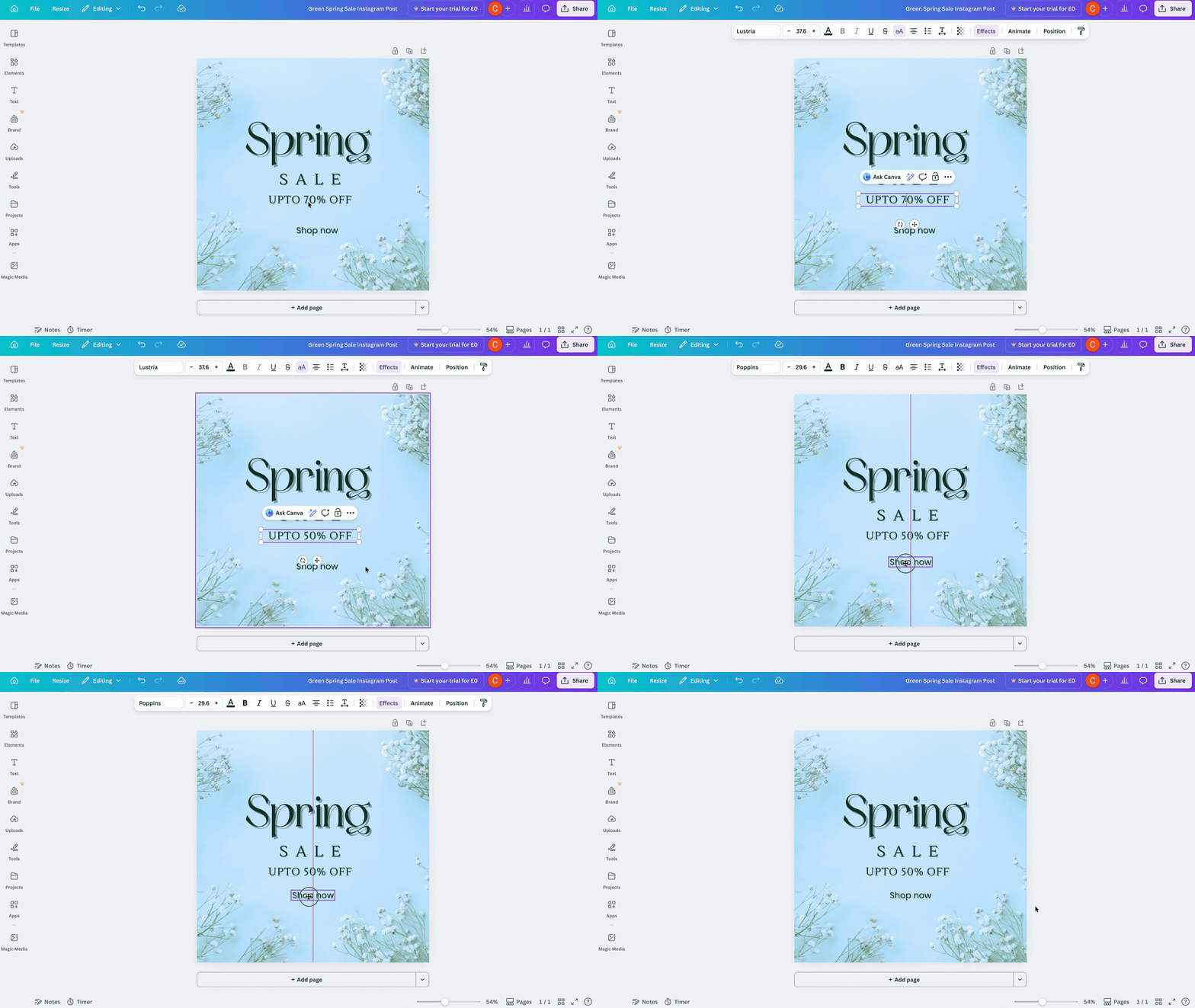
The canvas is the part that usually feels most natural because it's the actual design.
You click something, move it, change it, delete it, resize it. But there are still a few habits that make working here much easier.
Be clear about what you've selected
This is where a lot of confusion starts.
You think you're editing the text box, but you've clicked the page background. You think you're moving an image, but you've grabbed a grouped set of elements.
If the toolbar looks wrong, there's a fair chance you've selected the wrong thing.
Use the canvas to test and adjust
This is better than endlessly improvising.
Canva makes it very easy to drag things around, but that can lead to a lot of pointless fiddling.
If you find yourself nudging five objects by tiny amounts and still feeling unsure, step back and check whether the layout itself is the problem.
Replacing content is usually simple.
Click the text and rewrite it.
Click an image and swap it.
Drag uploaded content into place.
Resize items by pulling the corners.
Rotate if you need to, but use that sparingly unless the design really calls for it.
Most business content looks better when the layout stays controlled.
Get spacing right
Spacing is the quiet part of the canvas that affects everything.
A decent design can start to look clumsy if text boxes sit too close together, headings are slightly adrift from images, or one object is floating without relation to anything around it.
Canva gives you alignment and snapping support, and it's worth using. You don't need to be obsessive about it, but you do need to notice when things are off.
Know the difference between structural and decorative
If you're editing a template, keep an eye on what's structural and what's decorative.
A shape that looks insignificant may be helping the layout hold together. Delete it without thinking and the whole design can start to feel loose.
Pictured: A user creating a design in Canva using the canvas
5. How the top toolbar works
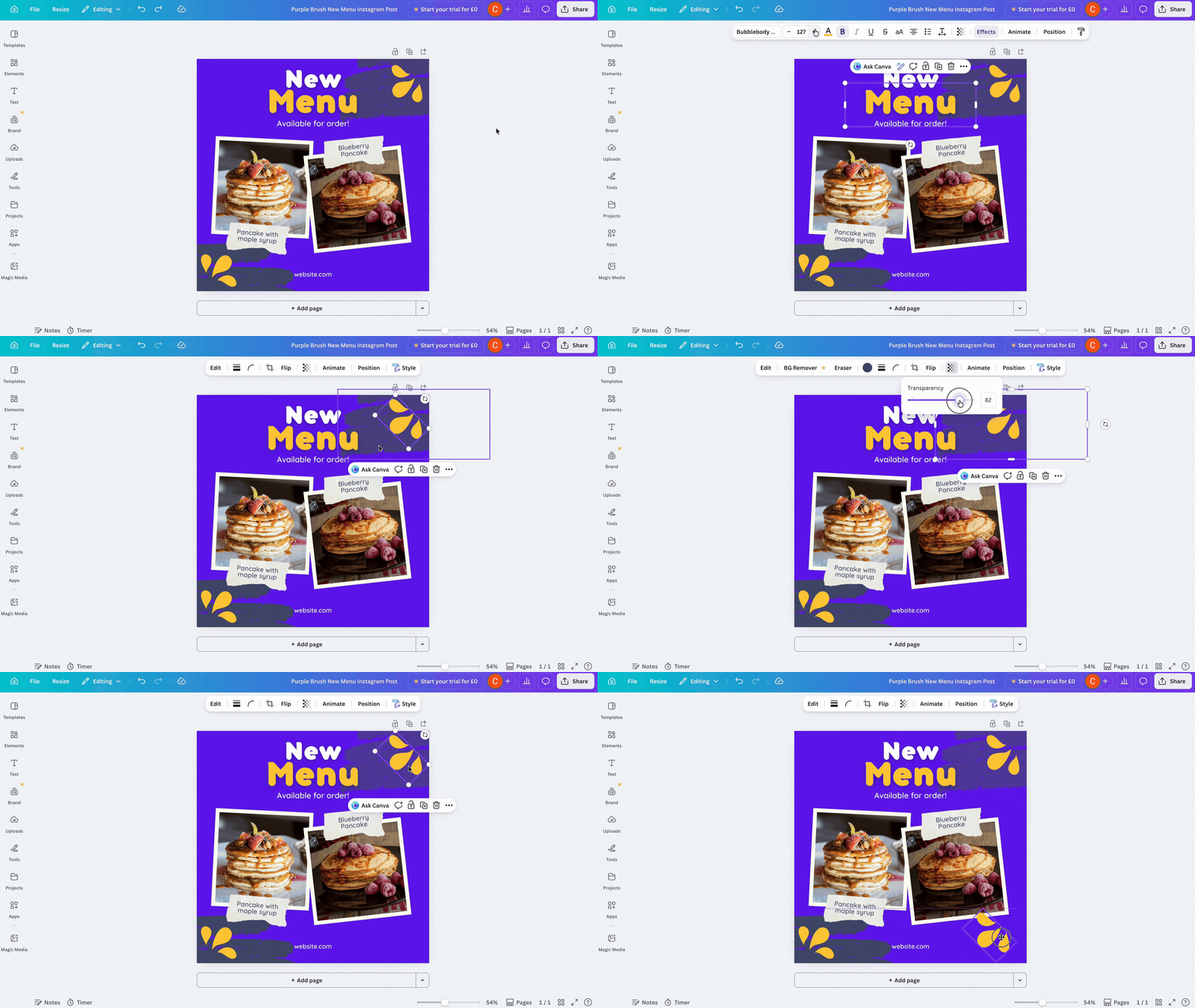
The top toolbar only makes sense once you realise it changes according to what's selected.
Click into a text box and you'll get text controls. That usually includes font, size, style, alignment, spacing, colour and a few other options depending on the design.
Click an image and those controls shift towards image editing, cropping and positioning.
Click a shape or graphic and the options change again.
That's why the toolbar can feel inconsistent at first. But, in fact, it's responsive. It's giving you controls linked to the thing you're working on.
Once you get used to that, it becomes easier to diagnose small problems.
If you're trying to change the colour of a heading and the toolbar is showing page options, you know you've clicked the wrong area.
If you're trying to adjust an image and only seeing text controls, same issue.
This is also where some useful practical tools appear.
Position controls help with alignment and stacking.
Transparency comes in handy when you're softening backgrounds or overlaying text on imagery.
Duplicate and delete actions save time when you're building layouts you want to use over and over again.
Pictured: A user exploring the top toolbar in Canva
6. How pages work in Canva
Pages become important the moment you're creating anything beyond a single graphic.
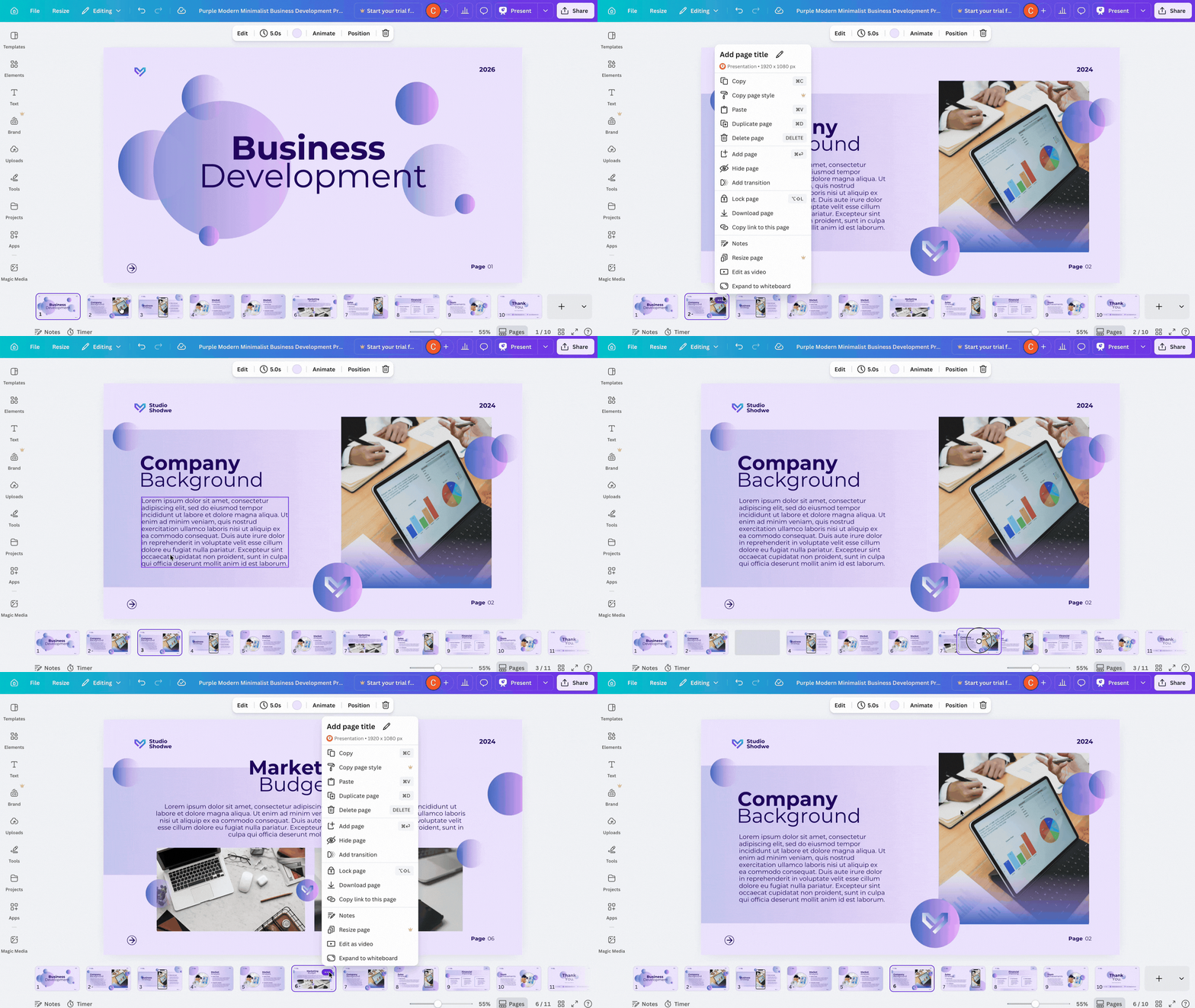
If you're building an Instagram carousel, a presentation with several slides, a workshop handout or a one-page design that later turns into a series, you'll spend a fair bit of time adding, duplicating and reordering pages.
Adding and duplicating pages
Adding a new page is simple. Duplicating a page is often more useful.
If you already have one page with the right branding, spacing and structure, duplicating it saves you rebuilding the same framework from scratch.
That's one of the easiest ways to work faster in Canva without using any advanced features.
Reordering pages
Reordering pages is also worth getting comfortable with.
A lot of people create pages in one order and then realise the flow makes more sense another way round.
Canva makes that fairly easy, and it's better to sort it while you're editing rather than exporting everything first and trying to patch it later elsewhere.
Deleting pages
Deleting pages is straightforward, but don't do it too quickly if you think you might want a version back. Duplicating before making bigger changes is usually safer.
If you're working on a sales deck, for example, and want to try a tighter second slide with less text, duplicate the original first. Then you can push the edit without losing the earlier version.
Pictured: A user scrolling through and editing pages in Canva
7. How layers work in Canva
Layers are one of the main reasons people think Canva is glitching when it isn't!
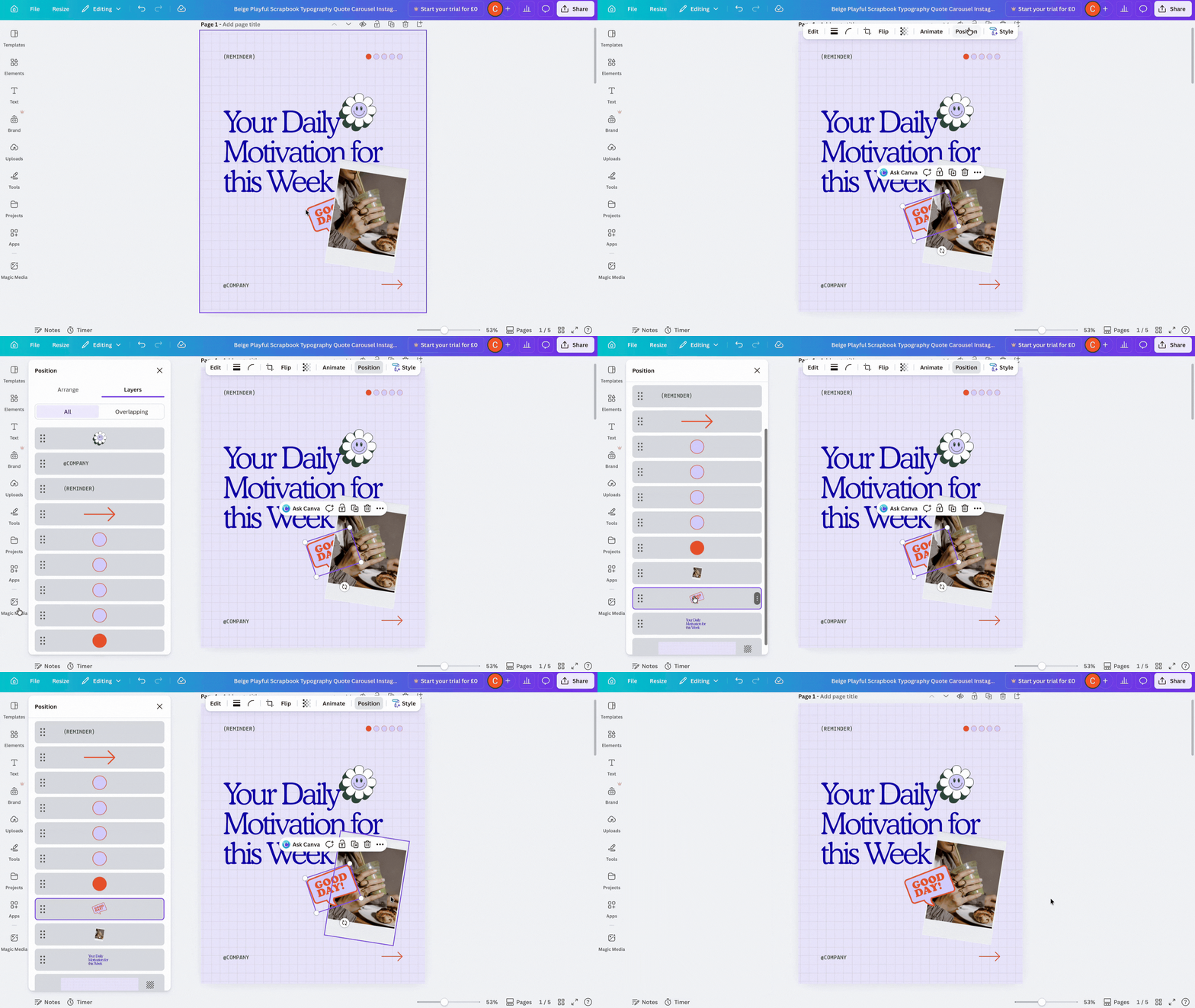
If something seems to have disappeared, there's a good chance it's still there but sitting behind another element.
If you can't click what you want, there may be a shape, image or text box on top of it. And if a design suddenly feels messy, the stacking order may be part of the problem.
In simple terms, layers are the order in which objects sit on the page. One thing is in front, another is behind. The editor lets you move those elements forward or backward so the right item is visible.
This quickly becomes useful. Say you're creating a graphic for a candle-making workshop and you want the venue photo to sit behind the event title, with a colour overlay softening the image.
Or, you're putting together a speaker announcement where the headshot, background shape and text all overlap slightly. If the order is wrong, the design won't read properly.
Most of the time, you just need to know that if something's hidden, it may be a layer issue. Open the position controls, check the stacking order and bring the right object forward.
Once you know that, a lot of small Canva frustrations stop being mysterious.
Pictured: A user scrolling through and applying layers in Canva
8. How to save, share and download your design
Canva saves work automatically, which is helpful, but that doesn't mean you can forget about file management entirely.
You still need to know where the design lives, what you're calling it and whether you're about to overwrite something you meant to keep.
Naming files
Naming matters more once you have a lot of files.
"Instagram post final final 3" isn't really a naming convention. A clearer name tied to the campaign, purpose or date will save time later, especially if more than one person is working in the account.
Sharing designs
Sharing is usually straightforward. You can send a link, adjust permissions and let other people view, comment or edit depending on what you need.
But be careful with edit access. If you've created a clean master version of a template, you don't want someone casually changing it when they meant to duplicate it first.
Downloading and exporting designs
Downloads are where beginners often create avoidable problems. The design itself may be fine, but the export choice undermines it. For example:
a file made for Instagram gets downloaded in an odd format
a flyer meant for print is exported with the wrong settings
a transparent background is expected where none was included
You can avoid most of this by deciding where the design is going before you download it.
If the design is for web or social, keep that in mind when exporting. If it's for print, check those requirements before you press download.
Canva gives you options, but it doesn't always stop you from choosing the wrong one for the job.
9. What to learn after the Canva editor basics
Once you're comfortable moving around the editor, the next useful step depends on how you plan to use Canva.
If you're still not sure which menus and features are worth your time, it makes sense to learn the core Canva tools first.
If you're using Canva regularly for marketing, the next smart move is usually building reusable templates so you're not starting from scratch each week.
You may also reach the point where you want to know whether the paid plan would genuinely help or whether the free version is enough for the way you work.
And once you're making content often, shortcuts and small workflow habits become much more useful than broad feature tours.
That's usually how people settle into Canva. First, the editor starts to feel familiar. Then the platform starts to fit into the way they already work.
FAQs about using the Canva editor
What is the Canva side panel for?
It's where you add things into your design. Templates, text, uploads, folders, projects and various extra tools usually sit there.
How do I add more pages in Canva?
Inside the editor, you can add a page, duplicate an existing one or move pages around depending on what you're making. Duplicating is often the quickest way to keep a design consistent.
Where do I find layers in Canva?
Layers are usually handled through the position controls. If something's hidden behind another object, that's the first place to check.
How do I share a Canva design?
Use the share controls in the editor to create a link or invite others in. Check the permission settings before sending anything people can edit.
Why does Canva sometimes look different from tutorials?
Because the interface changes. Tabs move, labels get updated and some features are shown differently over time. The general structure stays familiar even when individual menus shift around.
I'm one of Enterprise Nation's content managers, and spend most of my time working on all types of content for the small business programmes and campaigns we run with our corporate, government and local-authority partners.
)