Canva for beginners: A small business guide to getting started
Posted: Tue 14th Apr 2026
Last updated: Tue 14th Apr 2026
19 min read
Canva is one of those tools that can save your small business a lot of time once you know your way around it.
The problem is that many beginner guides either skim the basics so quickly they're no use, or they try to explain every menu, button and feature in one go.
This guide takes a simpler route.
It's for small business owners who want to use Canva with a bit more confidence, make decent-looking marketing materials and avoid wasting time on things that don't matter yet.
You don't need to learn the whole platform before you start using it properly.
You just need to know what Canva is good at, how the editor works, which tools you'll actually use and how to make your first branded design without getting sidetracked.
Contents
1. What is Canva and why do small businesses use it?
Canva is an online design tool that lets you create visual content without opening professional design software or hiring someone every time you need a graphic.
For a small business, that usually means:
social media posts
flyers
event graphics
simple presentations
branded documents
posters
short videos
images for a website or an email
That's the appeal. You can log in, choose a format, start from a template and make something useful fairly quickly.
For a lot of business owners, Canva becomes the place where everyday marketing gets made, like:
a promotion for a workshop
a square Instagram graphic for a product launch
a quick price list for a pop-up shop
a presentation for a partnership meeting
a simple PDF guide for new customers
It covers the kind of work that needs to look clear and on-brand, but doesn't need a designer involved every single time.
Canva is also popular because it takes away a lot of the "friction".
You don't need to start with a blank page unless you want to. You can use ready-made layouts, swap in your own colours, text and images, and go from there.
2. How to get started with Canva
The easiest way to get started is to ignore most of what Canva can do. That sounds odd, but it's the quickest way to feel comfortable using it.
If you open the platform and try to absorb everything at once, you'll spend half an hour clicking around and still won't have made anything. A better approach is to go in with one job in mind.
Pick one thing you actually need this week. It might be a social media post, a flyer for an event, a presentation title slide or a simple announcement graphic.
Keep it small. Your first goal isn't to master Canva, but to make one useful piece of content.
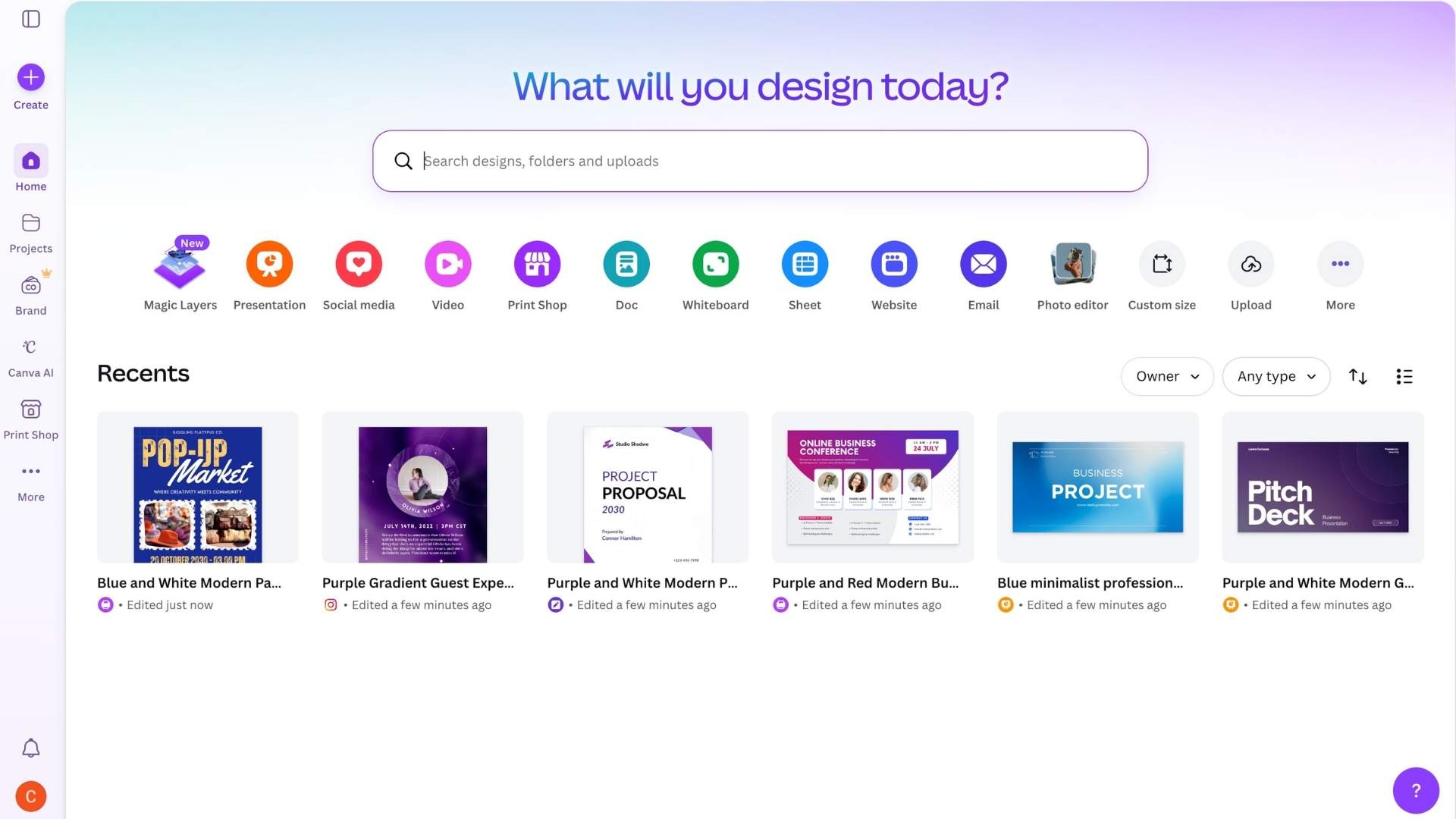
Once you've created an account, Canva will prompt you towards templates and design types. That's where most beginners should start.
Choose the format that matches the job.
If you need an Instagram post, start with that size.
If you need a presentation, choose a presentation template.
If you're making something to print, pay attention to the document type from the start so you're not fixing size problems later.
Templates make Canva easier to learn because the structure's already there.
You can see how text, images and spacing work together. You can replace what you don't need and keep what works. That's much more useful for a first project than staring at a blank screen.
You'll get further by treating your first hour in Canva as a practical task rather than a tour.
3. How the Canva editor works
Once you open a design, the editor itself is fairly straightforward.
The main canvas sits in the middle. That's where your design lives.
If you click on a text box, an image or a shape, you can edit it directly or use the toolbar at the top to change things like font, size, spacing, colour or position.
On the left-hand side, you'll usually find the content and tools that feed into the design. This is where you can:
browse templates
add text
upload your own files
search for graphics and photos
pull in brand assets if you've set them up
Don't feel you must use every tab. In most cases, beginners spend most of their time between templates, text, uploads and elements.
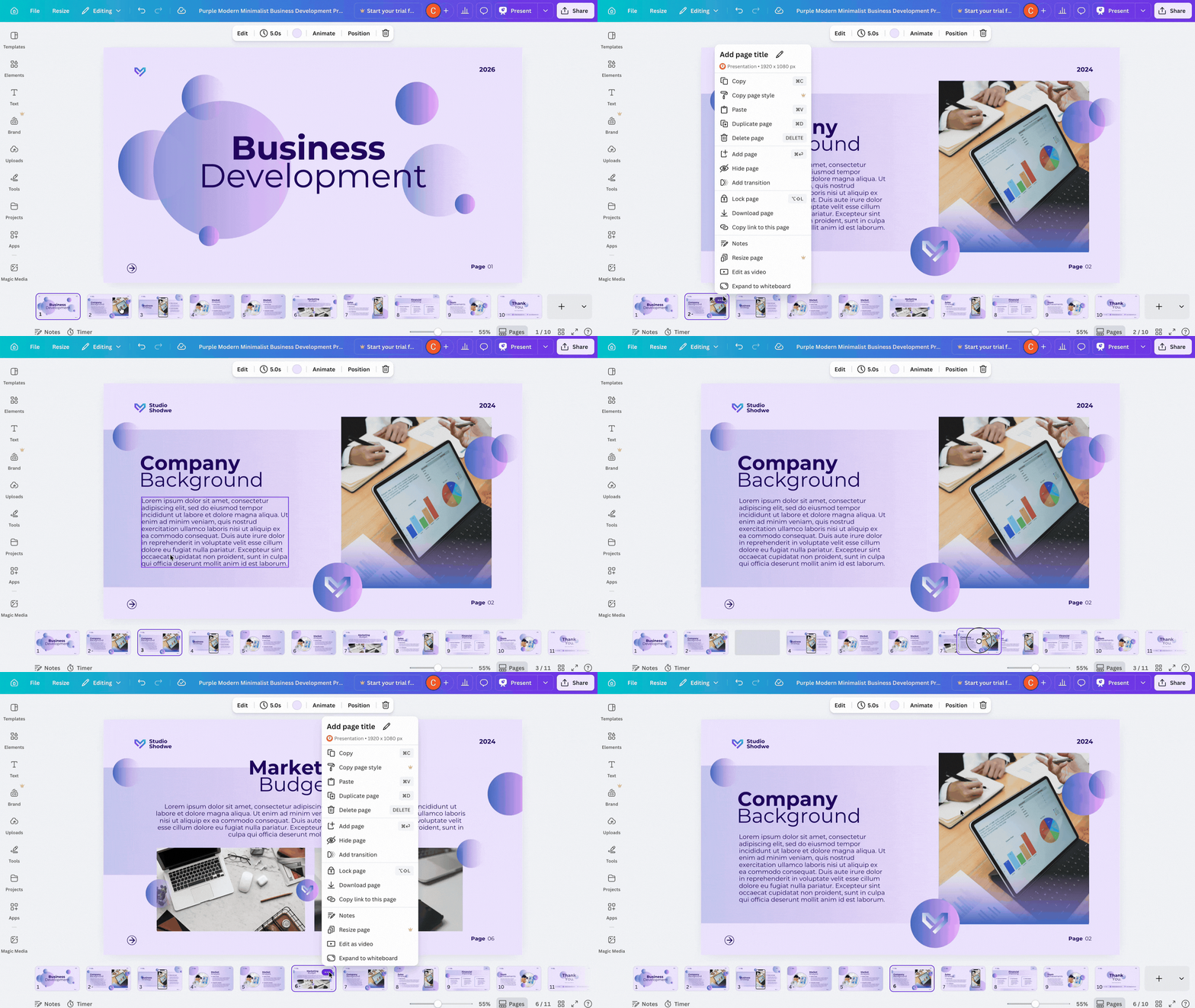
If your design has more than one page, those pages appear below or alongside the main canvas, depending on the format and editor view.
You can add new pages, duplicate existing ones and move them around. That's useful when you're building a set of related graphics and want consistency without starting over.
At the top, you'll also find options for sharing, downloading and sometimes resizing, depending on your plan. These matter more than people think.
A lot of beginner frustration comes from making something that looks fine in Canva but exporting it in the wrong file type or size.
The quickest way to get comfortable in the editor is to try a few simple actions on purpose.
Add a heading > Move it > Change the font > Replace an image > Duplicate a page > Download the design.
That gives you a feel for the tool without turning it into homework.
Canva has a lot of tools, but most beginners only need a handful to get going.
Templates
Templates are the obvious one. They're useful because they solve the hardest part of design for many people, which is deciding where to begin.
A good template gives you a layout, a rough visual direction and a starting structure. The trap is editing too much too soon.
If a template is working, keep the bones of it. Change the copy, colours and imagery first before you start dragging every element somewhere else.
Text tools
You'll use these constantly. You need to know how to edit text, change fonts and adjust size, line spacing, alignment and colour.
If your design feels messy, too many font styles are often part of the problem. Most small business graphics look better when you keep the text treatment simple and consistent.
Photos, graphics and elements
This is where people can easily get carried away. Canva gives you access to a huge number of icons, shapes, illustrations and stock images.
That can be useful, but it can also clutter a design fast. If a graphic doesn't help the message or the layout, cut it.
Uploads
These matter if you want your content to feel like your business rather than a generic template.
Your logo files, product photos, headshots, event pictures and any branded graphics should live here.
Once you start using Canva regularly, having your own assets ready makes the whole process smoother.
Brand colours and fonts
Brand colours and fonts become more important when you're making content regularly.
Even if you're not using Canva's more advanced brand tools yet, you should still know your own basics, like:
which colours are yours
which font styles you tend to use
which logo version goes where
Consistency makes ordinary content look more considered.
Functional tools
And then there are the small functional tools that save time without much fuss. You might use these to:
duplicate a page
copy the style from one element to another
neatly align text
resize content for another format (if your plan allows it)
share designs with a colleague
These aren't the most glamorous parts of Canva, but they make life much easier when you're using the platform all the time.
5. What Canva is best for in a small business
Canva is most useful for the tasks you do over and over again.
A small business rarely needs one perfect design once. It usually needs a steady stream of decent, on-brand content that it can make without too many challenges.
That's where Canva earns its place.
Social media
Social media is the obvious example, but even within that there's variety. You might use it to create:
a quote graphic pulled from a podcast interview
a launch post for a new service
a set of story slides for an event
a simple carousel explaining a process your customers keep asking about
These aren't huge creative projects, but they are practical pieces of communication.
Local marketing
Canva's also useful for local marketing.
Think of a café promoting late opening hours, a dog groomer advertising holiday bookings or a bookkeeping firm putting together a plain-English tax deadline graphic for clients.
These are all cases where Canva is a good fit because quick, clear communication matters more than bespoke designs from scratch.
Presentations and documents
Plenty of businesses use Canva for slide decks, proposal covers, one-page guides, checklists, customer PDFs and event handouts.
If you want something to look sharper than a default document but don't need full design software, Canva usually covers that ground well.
Where it becomes even more useful is when you stop making one-off pieces and start building repeatable assets, like:
a social post format you can reuse every week
a flyer style for recurring events
a proposal cover with your branding already set up
a set of slides you can duplicate and adapt
That's where you'll start to free up time.
6. Canva free and paid plans – what beginners need to know
A lot of people ask about this too early, but it's still worth covering.
Free plan
You can do plenty on Canva's free plan.
If you're just getting started, making simple social content, working on your own and using basic templates and assets, you may not need to pay straight away.
Free is enough to learn the editor, create straightforward designs and see whether the platform fits the way you work.
Paid plan
The point where paid features become more attractive is usually when your business starts making content more often and the friction becomes obvious.
Maybe you want easier ways to keep branding consistent, or a way to resize one design into several formats without rebuilding it.
Maybe you want access to more premium templates and assets, or tools that help you avoid all those repetitive editing steps.
Not every small business will need the paid version. Plenty of people can work happily on the free plan for a while.
But once you reach the stage where content's part of your weekly routine, the paid features can feel less like extras and more like time-savers.
How to choose
The useful question isn't "should I pay for Canva?", but "what's slowing me down right now?".
If the answer is branding, resizing, choosing assets or repetitive work, it may be worth looking at the paid options.
If the answer is simply that you're still learning, the free plan should be often enough for now.
7. How to create your first branded design in Canva
The best first project is usually a simple social media graphic. It's quick to make, easy to reuse and gives you a feel for the platform without too much set-up.
Start by choosing the correct format
Open a social post size that matches the platform you plan to use most. Then browse templates and pick one that looks clean and easy to edit.
Don't choose the busiest one on the page. Pick something with clear spacing and a layout you can imagine using again.
Swap in your own text
Keep it short – a headline, a short supporting line (if needed) and maybe a call to action.
If the original template has too much going on, remove some of it. You are allowed to simplify.
Bring in your brand colours
Change backgrounds, text or graphic accents so the design starts to feel like yours.
Add your logo if it makes sense for the format. On some graphics it will, on others it can feel heavy-handed. Use your judgement.
Check the spacing
This is where a lot of beginner designs fall apart.
If text feels cramped, give it more room. If elements are slightly off, line them up properly. If there are five visual ideas competing for attention, cut two of them.
Save a clean copy
Once you have a version you like, save a clean copy before making any edits in the future.
That matters. If you plan to reuse this design, keep one untouched master version so you're not constantly trying to undo changes you made last week.
From there, you can duplicate the design and adapt it for future posts. Change the headline, swap the image, update the call to action.
That's one of the simplest and most useful ways to use Canva in a small business. You make the initial decisions once, then reuse the structure.
8. What to learn next in Canva
Once you've made a few designs, the next step depends on what keeps slowing you down.
If the editor still feels a bit slippery, spend more time learning how the interface works. That'll save you more time than chasing advanced tips too early.
If you keep wondering what certain tools are for, focus on the core Canva features you're most likely to use in everyday business tasks.
If your bigger question is whether the platform is worth paying for, it makes sense to look more closely at what the paid plan actually changes in practice.
And if you've already made one design you like, the next smart move is building a reusable template so you're not starting over every time.
That's usually the point where Canva becomes genuinely useful – when you have a few repeatable ways to make the things your business needs.
9. FAQs about Canva for beginners
Is Canva free to use?
Yes. Canva has a free plan and it's enough for many beginners to get started, learn the editor and create simple marketing content.
Is Canva good for small business owners with no design background?
Yes. Most people don't need design training to use Canva for everyday business content.
What helps more is knowing what you're trying to make, starting with a decent template and keeping your designs simple.
What can a small business make in Canva?
Most small businesses use Canva for social media graphics, event posters, flyers, short presentations, branded PDFs, promotional graphics and simple visual content for websites or email marketing.
Do I need the paid plan straight away?
Not usually. Many beginners can stick with the free plan while they learn.
Paid features become more useful once you're creating content regularly and want more efficient ways to manage branding, resizing and design assets.
What should I make first in Canva?
Start with something small and useful. A social media post is often the best first project because it's quick to create and easy to reuse.
I'm one of Enterprise Nation's content managers, and spend most of my time working on all types of content for the small business programmes and campaigns we run with our corporate, government and local-authority partners.
)